





NeuroMetric HRV-DFalpha1
Real-time DFA α1 heart rate variability monitoring for precision endurance training. Works with any Bluetooth HR sensor....
- $3.99
$9.99- $3.99
- Unit price
- per
Please hurry! Only 0 left in stock
Limited-Time Offers, End in:
151D
8H
23M
0S
Subtotal:
$3.99
10 customers are viewing this product
Couldn't load pickup availability
Secure Shipping
Manufacturer’s Warranty
Safe & Non-Invasive

Description
xReal-time DFA α1 heart rate variability monitoring for precision endurance training. Works with any Bluetooth HR sensor. Measure your real time:
0.75 Aerobic Threshold (VT1)
0.50 Anaerobic Threshold (VT2)
120s Rolling Analysis Window
Any BLE HR Sensor *Chest Strap Preferred
What is DFA α1 and why does it matter?
DFA α1 — Detrended Fluctuation Analysis alpha 1 — is a mathematical measure of the fractal complexity of your heartbeat pattern. Unlike traditional HRV metrics that measure the size of variability, DFA α1 measures the structure of variability — how correlated or random your heart's rhythm is from beat to beat.
At rest and low intensity, your heart beats in a complex, fractal-like pattern driven by parasympathetic (vagal) tone. As exercise intensity increases, the sympathetic nervous system takes over and this pattern breaks down — becoming simpler and more random. DFA α1 tracks this breakdown in real time, revealing two critical physiological thresholds.
The DFA α1 Intensity Spectrum
How your α1 value maps to exercise intensity and autonomic state
Rest / Recovery← VT1 at α1 = 0.75 (Yellow line)VT2 at α1 = 0.50 (Red line) →Max Effort
Aerobic Threshold — VT1
When α1 drops below 0.75, you have crossed VT1 — the first ventilatory and lactate threshold. This is the upper boundary of true Zone 2 training. Training below this point maximises fat oxidation, mitochondrial density, and aerobic base without accumulating systemic fatigue.
Anaerobic Threshold — VT2
When α1 drops below 0.50, you have crossed VT2 — the anaerobic threshold. The heart's beat pattern is now essentially random, driven by acute demand. Only short efforts are sustainable here. This is the Norwegian double-threshold target zone.
Non-invasive Threshold Testing
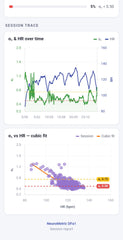
Previously, identifying VT1 and VT2 required laboratory lactate testing. DFA α1 provides the same physiological thresholds in real time using only a chest strap — validated against Kubios gold-standard HRV analysis in multiple peer-reviewed studies.
Any Bluetooth HR Sensor
Unlike other apps locked to Polar devices, NeuroMetric HRV works with any standard Bluetooth Low Energy heart rate sensor — Garmin, Wahoo, cheap chest straps, and more — using the universal BLE Heart Rate Service protocol.
Understanding what you see
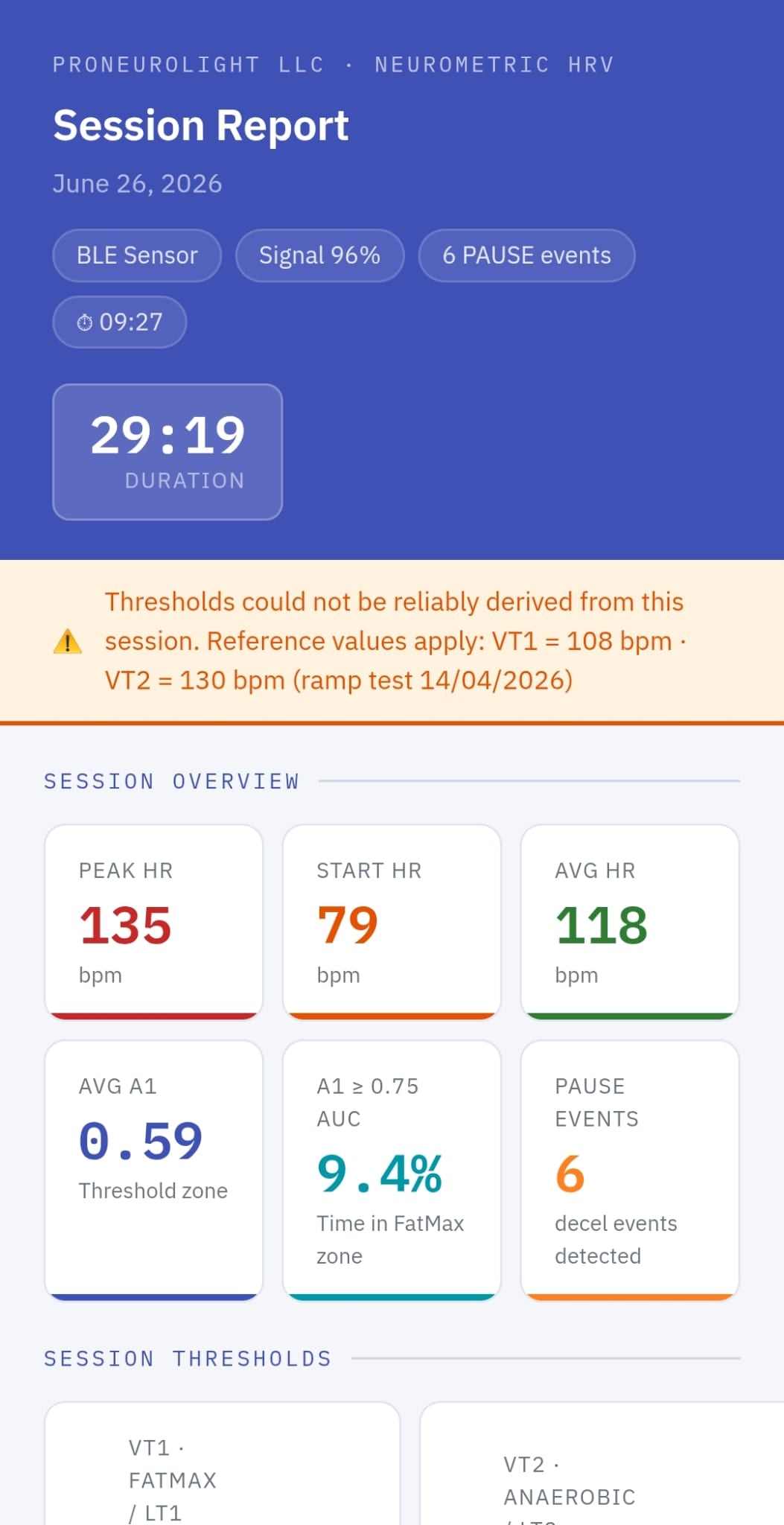
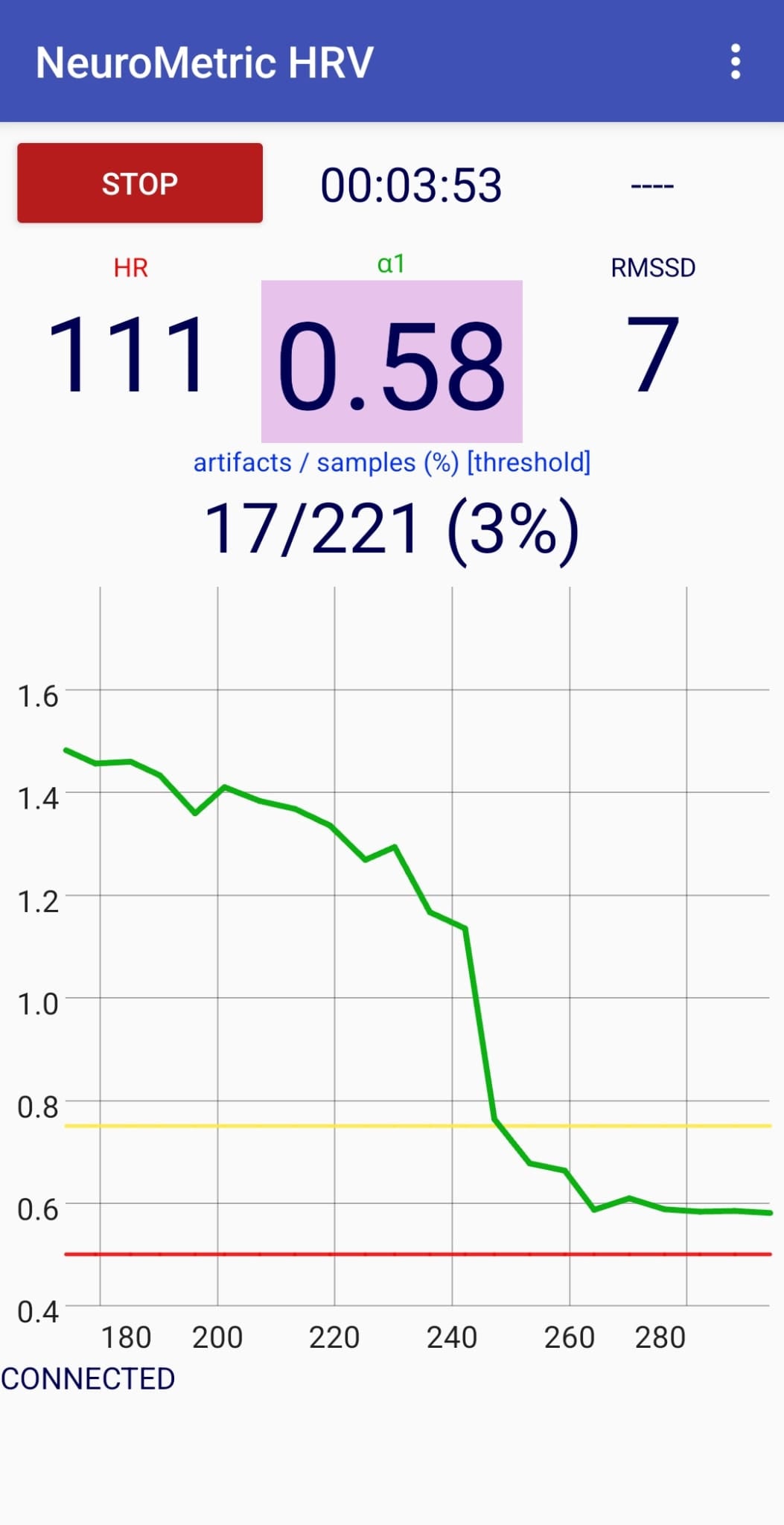
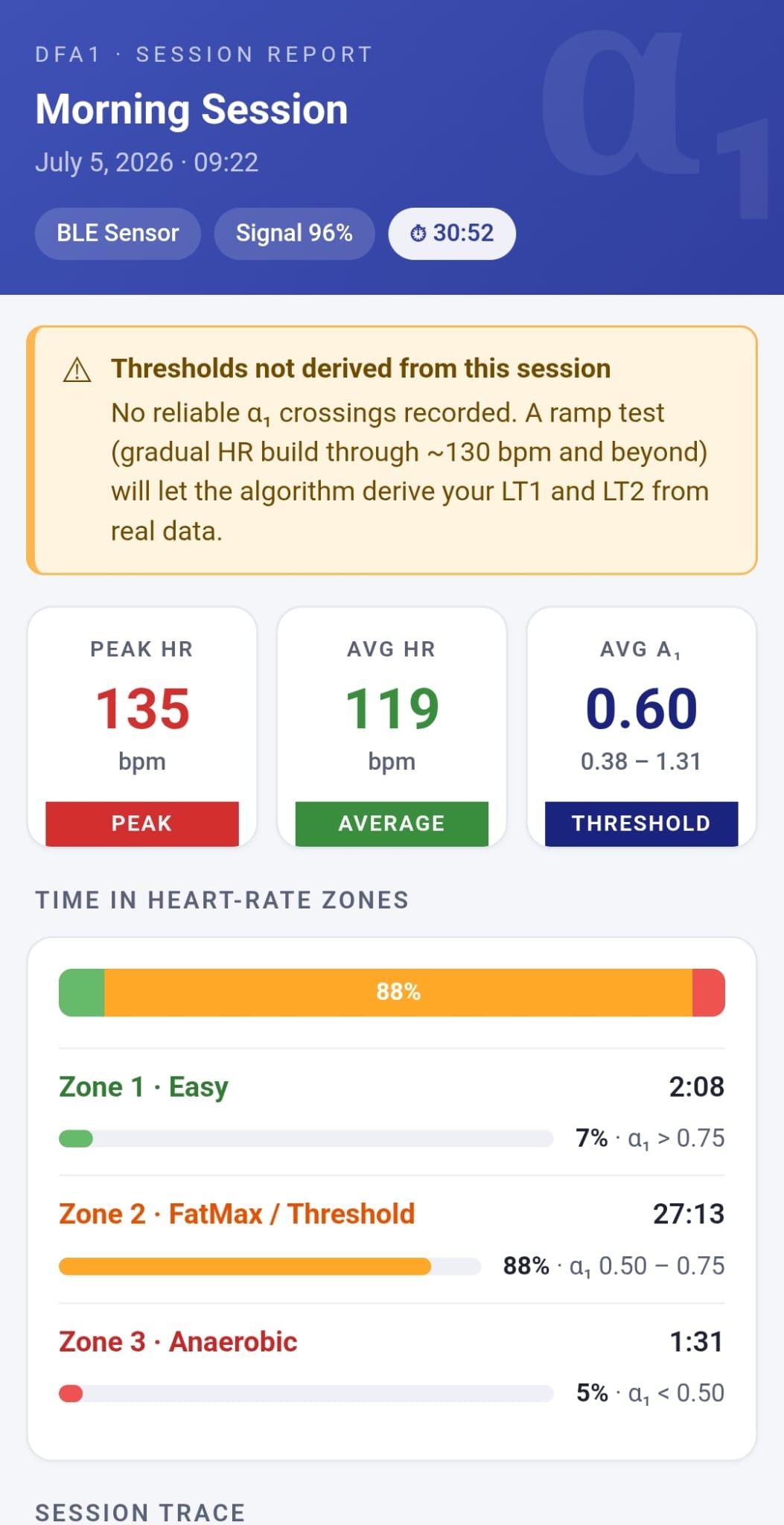
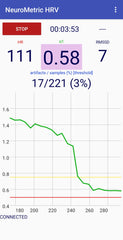
The app displays three key metrics in real time, updated every 20 seconds once 2 minutes of data are collected.
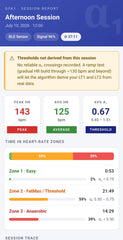
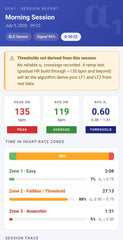
> 1.0 Easy / Relaxed Pace
Deep parasympathetic dominance. Recovery or very light warm-up. Well below aerobic threshold.
0.75–1.0 FatMax Zone
Optimal aerobic training. Maximum fat oxidation. Sustainable for long efforts. Stay here for Zone 2.
0.5–0.75 Threshold Zone
Between VT1 and VT2. Lactate accumulating. Norwegian double-threshold interval zone.
< 0.5 Anaerobic
Above VT2. High-intensity. Unsustainable beyond short intervals. Significant recovery cost.
| Metric | What it means | Normal resting range |
|---|---|---|
| α1 | DFA alpha1 — the primary training intensity metric. The green line on the graph. Updates every 20 seconds from a 2-minute rolling window. | 1.0 – 1.8 at rest |
| HR (bpm) | Instantaneous heart rate in beats per minute. Updated with each heartbeat notification from your sensor. | 40 – 80 bpm at rest |
| RMSSD | Root mean square of successive RR differences. A time-domain HRV measure reflecting parasympathetic activity. Higher = more recovered. | 25 – 80 ms at rest |
| Artifacts / Samples (%) | Number of rejected RR intervals vs total samples in the 2-minute window. Below 5% is ideal. Above 20% reduces α1 reliability. | < 5% ideal during exercise |
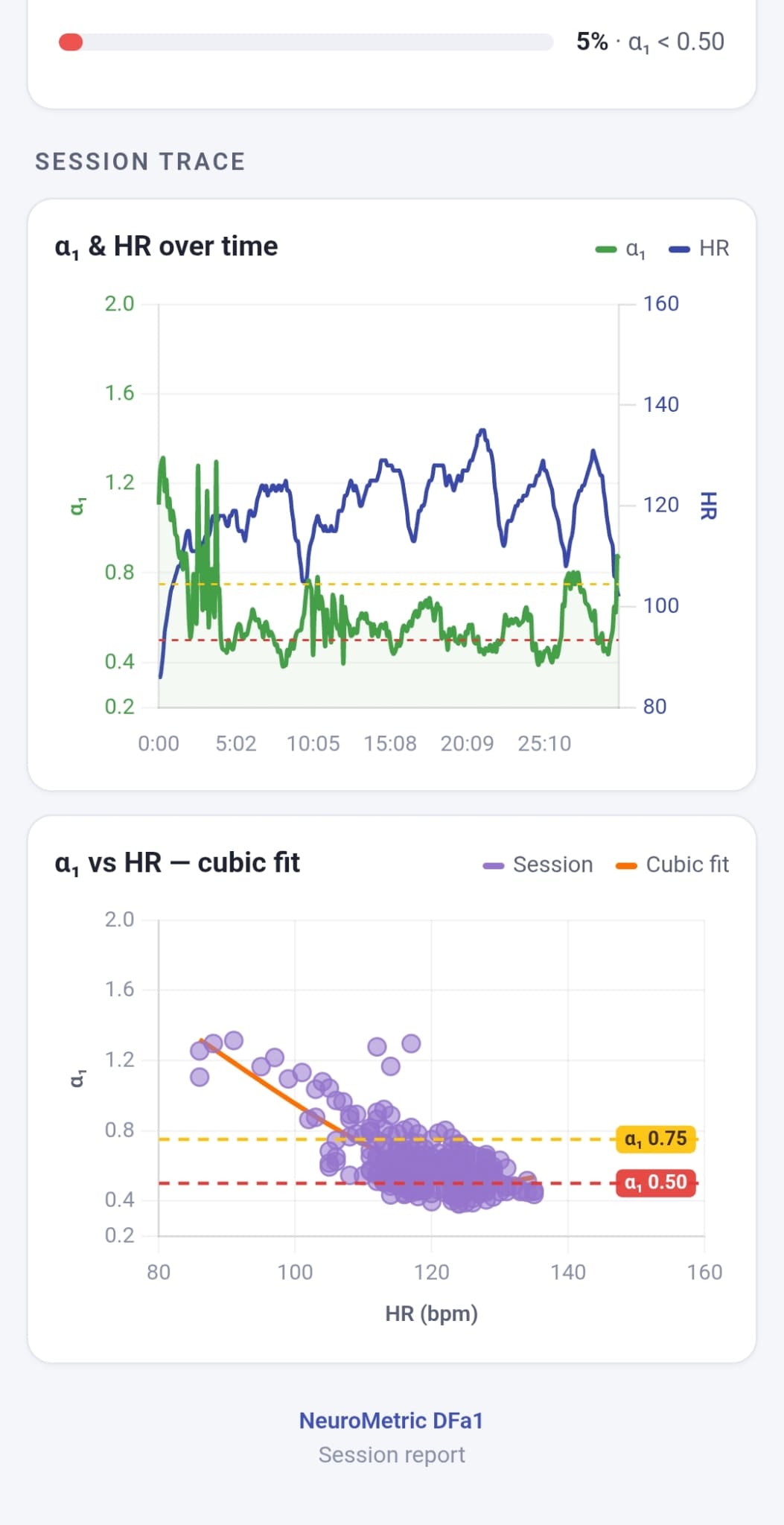
| Yellow line (graph) | Fixed reference at α1 = 0.75 — your aerobic threshold (VT1). Keep your α1 trace above this for Zone 2 training. | α1 = 0.75 |
| Red line (graph) | Fixed reference at α1 = 0.50 — your anaerobic threshold (VT2). Crossing this marks high-intensity territory. | α1 = 0.50 |
Getting started step by step
Prepare your HR sensor
Wet the electrode pads of your chest strap with water or electrode gel. Put it on and wait 30 seconds for a stable signal. Any BLE HR sensor with RR interval support works — chest straps give the most accurate RR data for DFA α1 calculation.
Open NeuroMetric HRV and grant permissions
On first launch, the app asks for Bluetooth permissions. Tap Allow. Without this permission the app cannot scan for or connect to your HR sensor. On Samsung devices you may also need to enable "Nearby devices" permission in Settings → Apps → NeuroMetric HRV → Permissions.
Scan and select your sensor
Tap the three-dot menu (⋮) → Scan for HR sensors. A dialog appears listing all nearby BLE heart rate devices. Tap your sensor's name to connect. The status bar at the bottom shows CONNECTED when successful.
💡 After your first session, use Connect last sensor in the menu to reconnect instantly without scanning.
Wait for the first α1 reading
The app needs a full 2-minute window of RR data before the first α1 value appears. During this time HR and RMSSD will update but α1 shows dashes. This is normal and scientifically required — a shorter window produces unreliable DFA calculations.
α1 appears after ~20 seconds of clean RR data
Monitor your intensity in real time
Watch the green α1 trace on the graph. Your goal during aerobic base training is to keep the trace above the yellow 0.75 line. If α1 drops toward or below the yellow line, slow down immediately to return to the aerobic zone.
During threshold intervals, target the zone between the yellow and red lines (α1 = 0.50 to 0.75).
Export your session data
Tap the three-dot menu → Export Logs. This shares two files via your choice of app (WhatsApp, email, etc.):
rr.log — every RR interval with timestamp, for detailed HRV analysis in Kubios or other software.
features.csv — timestamped α1, HR, RMSSD, artifact rate per calculation window — ideal for charting session progress.
Label your session
Tap Rename Session to tag the log files with a meaningful name — client name, date, workout type. This makes it easy to identify sessions when reviewing exported data later.
The DFA α1 Ramp Test — finding your personal thresholds
Run this test once every 4–8 weeks to track fitness changes. Your VT1 and VT2 heart rates will shift upward as fitness improves — meaning you can work harder at the same autonomic cost.
Phase 1 · 0–12 min
Warm-up
Walk or very easy jog. Ensure α1 is stable and well above 1.0 before beginning the ramp. Rushing this phase produces unreliable threshold detection.
Phase 2 · 12–40 min
Gradual ramp
Increase pace or power very slowly — approximately every 3 minutes. The α1 value needs 2 minutes to reflect each intensity change. Rushing the ramp misses the threshold crossings.
Detection · Watch the graph
VT1 identification
Note the HR and pace/power the moment the green α1 trace crosses below the yellow 0.75 line. This is your personal aerobic threshold — your Zone 2 ceiling.
Detection · Continue ramp
VT2 identification
Continue increasing intensity. Note the HR and pace/power when α1 crosses below the red 0.50 line. This is your anaerobic threshold — your threshold interval target zone upper limit.
Important: Artifact rate must stay below 5–10% during the ramp for reliable threshold detection. If artifacts spike above 20%, re-wet your strap and ensure a firm, flat contact with skin.
How the algorithm works
NeuroMetric HRV implements the validated DFA α1 calculation method used by Kubios HRV Premium, with the smoothness priors detrending method.
| Parameter | Value | Notes |
|---|---|---|
| Analysis window | 120 seconds (2 minutes) | Rolling window, slides with each new RR interval |
| Recalculation period | 20 seconds (default) | Configurable down to 5 seconds minimum |
| Detrending method | Smoothness priors (λ = 500) | Matches Kubios Premium — validated by Bruce Rogers et al. |
| Artifact rejection | Auto mode (5% @HR>95, 25% @HR<80) | Rejects RR intervals changing by more than threshold % |
| BLE protocol | Standard GATT HR Service (UUID 0x180D) | Works with any compliant BLE HR sensor |
| RR resolution | 1/1024 second (~1ms) | Standard BLE HR Measurement characteristic format |
| Log output | rr.log + features.csv | Compatible with Kubios, HRV4Training, and spreadsheet analysis |
Common issues and solutions
High artifact rate (>20%)
Re-wet the chest strap electrodes. Ensure firm, even contact with skin. Wait 60 seconds for signal to stabilise before starting. Cotton t-shirts can cause signal dropout — bare skin contact is best.
α1 not appearing
Normal for the first 2 minutes. If it never appears, check artifact rate — if above 50% the data quality is too poor for DFA calculation. Try repositioning the strap.
App cannot find sensor
Ensure Bluetooth is on. Tap Scan for HR sensors in the menu. Make sure no other app (Polar Beat, Garmin Connect) is connected to the sensor simultaneously — BLE allows only one connection.
α1 seems too high or too low
At rest, α1 of 1.2–1.6 is normal. During exercise it should decline. Values above 1.8 or below 0.3 may indicate artifact contamination. Check your artifact rate percentage.
Reference lines disappearing
The yellow and red reference lines extend as the session scrolls. If they appear to vanish, they will reappear with the next α1 calculation update. This is a known display refresh behavior.
App disconnects during workout
Enable "Keep screen on" to prevent Android from pausing the app. Avoid switching to other apps mid-session. Samsung devices may require disabling battery optimization for NeuroMetric HRV.
Recommendations
Recently Viewed Products
- Choosing a selection results in a full page refresh.